
































 Landing page
 E-commerce website
 UX/UI design
 Business software & ERP
 SaaS software
 B2B client portal
 Web App & PWA
 Mobile app
 Artificial Intelligence
 Organic SEO
 AI SEO & GEO

Introduction
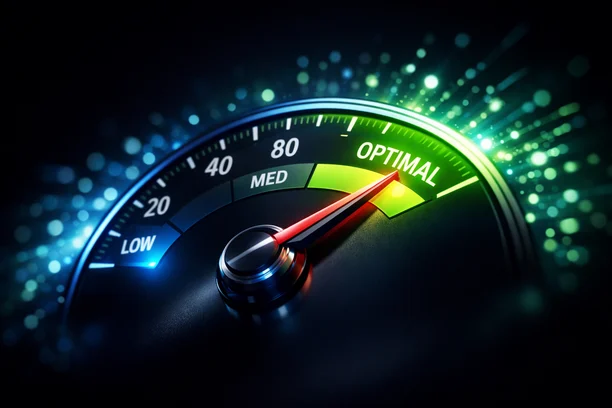
WordPress site speed is no longer a technical concern reserved for developers, it’s a direct growth lever. A slow site loses visitors, conversions, and Google rankings. In 2026, performance standards are stricter than ever, and the good news is that solutions are within reach at every skill level.
,
What is WordPress site speed and why does it matter for SEO?
Load time, Core Web Vitals, and user experience: the performance triangle
WordPress site speed refers to the time it takes for a page to become fully usable by a visitor. It’s measured through several indicators: total load time, Core Web Vitals (LCP, INP, CLS), and perceived responsiveness. These three dimensions are inseparable, neglecting one degrades the other two.
User experience depends directly on it. A visitor who waits more than 3 seconds is statistically more than 50% likely to abandon the page before reading a single word. Technical performance therefore drives engagement, organic search rankings, and conversion rates.
How does Google measure site speed in 2026?
Google relies on real-world data from the Chrome User Experience Report (CrUX) to assess actual site performance. Core Web Vitals have been part of the ranking algorithm since 2021, and their weight has steadily increased. In 2026, INP (Interaction to Next Paint) has definitively replaced FID as the interactivity metric.
PageSpeed Insights scores therefore reflect both lab data (simulated tests) and field data. This combination determines whether your site earns the “Good Page Experience” badge in Google Search Console.
Direct impact of slow loading on bounce rate and conversions
According to multiple e-commerce studies, every additional second of load time reduces conversion rates by roughly 7%. For a WooCommerce store generating $10,000 per month, that’s $700 lost per second of latency, every single month.
Bounce rate spikes as soon as LCP exceeds 2.5 seconds. Slow pages are also crawled less frequently by search engine bots, which limits crawl budget and slows down the indexing of new content.
,
WordPress performance audit: diagnosing issues before optimizing
The best tools to test your WordPress site speed (PageSpeed Insights, GTmetrix, WebPageTest)
Before optimizing anything, you need an accurate diagnosis. Three tools are industry standards:
, PageSpeed Insights: CrUX field data + Lighthouse score. Ideal for tracking Core Web Vitals over time.
, GTmetrix: detailed resource analysis, waterfall chart, and prioritized recommendations.
, WebPageTest: advanced tool for testing from different locations, different browsers, and simulating 3G connections.
Always start by testing from a location close to your primary audience.
Interpreting Core Web Vitals metrics: LCP, INP, CLS
, LCP (Largest Contentful Paint): measures how long it takes to render the largest visible element. Target: under 2.5 seconds.
, INP (Interaction to Next Paint): evaluates responsiveness to user interactions. Target: under 200ms.
, CLS (Cumulative Layout Shift): quantifies unexpected visual shifts. Target: score below 0.1.
A site can have a strong LCP but a catastrophic CLS caused by an ad banner that loads late.
Identifying resources that slow down loading (images, scripts, plugins)
The waterfall chart in GTmetrix or WebPageTest reveals render-blocking resources. The usual suspects: uncompressed images, third-party scripts loaded synchronously, plugins injecting CSS and JS on every page indiscriminately, and slow external API requests.
,
Choosing a fast WordPress hosting provider for your needs
Shared hosting, VPS, or cloud: what’s the real impact on performance?
Shared hosting splits server resources among dozens of sites. Performance is unpredictable and often inadequate as traffic grows. A VPS provides dedicated resources and better control over configuration. Cloud hosting (managed or not) adds automatic scalability.
For a professional WordPress site, budget shared hosting is generally incompatible with strong Core Web Vitals scores.
The best WordPress hosting providers optimized for speed in 2026
Among the top-performing solutions in 2026: Kinsta and WP Engine for premium managed hosting, SiteGround for a solid European-backed option, and Cloudways for flexible cloud hosting with an excellent price-to-performance ratio. These hosts offer LiteSpeed or Nginx servers, PHP 8.x, native server-side caching, and integrated CDNs.
Configuring PHP 8.x and MySQL to maximize server performance
PHP 8.2 or 8.3 delivers performance gains of 15-25% compared to PHP 7.4, which is still running on a surprising number of WordPress sites. Check the active version in your hosting dashboard and upgrade if your theme and plugins are compatible.
On the database side, enable the InnoDB engine, increase innodb_buffer_pool_size if you have access to MySQL configuration, and make sure slow queries are logged so they can be identified and addressed.
,

Optimizing WordPress images to reduce page load time
Choosing the right image format: WebP, AVIF, or JPEG depending on use case
WebP delivers 25-35% better compression than JPEG at equivalent visual quality. AVIF goes even further, up to 50% smaller, but browser support, while broad in 2026, is still worth verifying in legacy environments. JPEG remains relevant for high-resolution images intended for printing or download.
For a standard WordPress site, WebP is the optimal default choice.
Lossy vs. lossless image compression: recommended tools and plugins
Lossy compression significantly reduces file size at the cost of a minor degradation invisible to the human eye. Lossless compression preserves every pixel, ideal for logos and illustrations.
Recommended plugins: Imagify, ShortPixel, and Smush Pro. On the command line, cwebp and squoosh-cli enable fine-grained automation.
Lazy loading and responsive image sizing in WordPress
Since WordPress 5.5, lazy loading is enabled natively via the loading="lazy" attribute. This defers the loading of off-screen images and reduces the initial page weight.
Responsive sizing via the srcset attribute lets the browser select the most appropriate image size based on screen resolution. Make sure your theme generates multiple image sizes and that images are declared with explicit dimensions to prevent CLS.
,
Building an effective WordPress caching strategy
Page cache, object cache, and browser cache: what’s the difference?
, Page cache: generates a static HTML version of each page, eliminating PHP execution and SQL queries on every visit.
, Object cache: stores the results of complex queries (via Redis or Memcached) to speed up dynamic environments like WooCommerce.
, Browser cache: tells the browser to store static assets (images, CSS, JS) locally for return visits.
A complete caching strategy combines all three levels.
The best WordPress caching plugins: WP Rocket, W3 Total Cache, LiteSpeed Cache
WP Rocket is the gold standard for premium WordPress caching: simple setup, immediate results, and broad compatibility with themes and plugins. LiteSpeed Cache is free and extremely powerful on LiteSpeed servers. W3 Total Cache offers maximum granularity but requires expert-level configuration.
Configuring cache correctly to avoid conflicts with WooCommerce and dynamic pages
Cart, checkout, and account pages should never be cached. WP Rocket and LiteSpeed Cache exclude these URLs by default. Also verify that session cookies and nonces are not cached, otherwise logged-in users may see stale or incorrect data.
,
Minifying and optimizing CSS, JavaScript, and HTML files
Minification, concatenation, and deferred loading of JS scripts
Minification strips spaces, comments, and unnecessary characters from CSS and JS files, reducing their size by 10-30%. Concatenation merges multiple files into one, cutting the number of HTTP requests, though HTTP/2 reduces the need for this approach.
Deferred JS loading (defer or async) is critical: it prevents scripts from blocking page rendering and directly improves LCP.
Removing unused CSS and reducing render-blocking resources
A WordPress theme often loads hundreds of CSS rules, 80% of which don’t apply to the current page. Tools like PurgeCSS or WP Rocket’s “Load CSS Asynchronously” feature let you deliver only critical CSS inline and load the rest asynchronously.
Plugins and native methods to optimize front-end code in WordPress
Beyond caching plugins, dedicated solutions exist: Autoptimize for minification and concatenation, Asset CleanUpFlying Scripts to defer non-critical third-party scripts.
,
Using a CDN to speed up WordPress content delivery
What is a CDN and how does it improve WordPress site speed?
A CDN (Content Delivery Network) is a geographically distributed network of servers that delivers your site’s static files from the location closest to each visitor. The result: network latency drops, TTFB (Time To First Byte) improves, and your origin server handles less load. For a WordPress site with an international audience, the gains are immediate and measurable.
Cloudflare, BunnyCDN, KeyCDN: a comparison of WordPress-compatible CDNs
, Cloudflare: CDN + proxy + built-in security. Generous free plan with native WordPress integration via an official plugin.
, BunnyCDN: outstanding performance-to-price ratio, pay-as-you-go billing, ideal for sites with heavy media content.
, KeyCDN: a robust technical solution, particularly well-suited for video streaming and large file delivery.
Integrating a CDN with WordPress without affecting SEO or cookies
Adding a CDN can introduce canonicalization issues if static resource URLs switch to a different domain. Configure the CDN URL correctly in your caching plugin, and verify that consent cookies are not blocked by CDN cache rules.
,

Optimizing the WordPress database for faster performance
Cleaning up revisions, transients, and orphaned data
By default, WordPress saves every revision of every post, a three-year-old site can accumulate tens of thousands of them. Expired transients, orphaned metadata, and spam comments unnecessarily bloat the database and slow down queries.
Limit revisions in wp-config.php with define('WP_POST_REVISIONS', 5) and regularly purge old entries.
WordPress database optimization plugins: WP-Optimize, Advanced Database Cleaner
WP-Optimize combines cleanup, table compression, and caching in a single tool. Advanced Database Cleaner provides granular analysis of orphaned data by type. Both offer scheduled cleanups to keep the database lean without manual intervention.
Scheduling automated WordPress database maintenance
A weekly automated maintenance routine is sufficient for most sites. Configure WP-Optimize to run cleanup every Monday at 3 a.m., outside peak hours. Always back up your database before any automated optimization, a plugin like UpdraftPlus handles this seamlessly.
,
Reducing the number and performance impact of WordPress plugins
How to identify plugins that are slowing down your WordPress site
The Query Monitor plugin reveals the number of SQL queries, PHP execution time, and scripts loaded by each extension. P3 Profiler (though less actively maintained) and GTmetrix profiling tools also help isolate resource-heavy plugins.
Simple method: deactivate your plugins one by one and test speed after each deactivation. The culprit reveals itself quickly.
Best practices for managing plugins without sacrificing functionality
, Never install a plugin for something achievable in 5 lines of code.
, Deactivate and delete inactive plugins, they still consume resources during updates.
, Evaluate every new plugin through a performance lens before installing it: number of SQL queries, CSS/JS files injected, compatibility with your stack.
Lightweight alternatives to the most common bloated plugins
| Feature | Common heavy plugin | Lightweight alternative |
|, |, |, |
Rather than Contact Form 7 with multiple add-ons, use Fluent Forms or code a native form. Replace jQuery sliders with pure CSS solutions. Avoid visual page builders on critical pages in favor of native Gutenberg blocks.
,
Optimizing your WordPress theme for better performance
Choosing a lightweight, performance-optimized WordPress theme: Astra, GeneratePress, Kadence
These three themes generate pages under 30KB with no content, compared to 150-400KB for typical commercial themes. They follow modern standards for conditional script loading and are built to score 90+ on PageSpeed Insights right out of the box.
GeneratePress is especially popular among developers for its extreme lightness and “zero unnecessary CSS” philosophy. Astra offers a larger library of ready-to-use templates. Kadence excels with Gutenberg blocks.
Reducing dependencies on Google Fonts loading
Every Google Fonts request generates an external call that can delay text rendering. Solutions: host fonts locally using the OMGF (Optimize My Google Fonts) plugin, use font-display: swap to prevent invisible text flash, or switch to system fonts that require no external loading at all.
Disabling unnecessary theme features to lighten rendering
Most themes load animation scripts, full FontAwesome icon sets, or jQuery libraries even on pages that don’t need them. Use WordPress hooks (wp_dequeue_script, wp_dequeue_style) to remove these superfluous dependencies on pages where they serve no purpose.
,
Enabling HTTPS, HTTP/2, and HTTP/3 to boost loading speed
Migrating your WordPress site to HTTPS without losing performance
HTTPS is an absolute requirement in 2026, for SEO, security, and performance (HTTP/2 depends on it). Migration is done via a free Let’s Encrypt SSL certificate, available in one click from virtually every modern hosting provider. After activation, update the URL in WordPress settings, force a 301 HTTP → HTTPS redirect in .htaccess, and check for mixed content issues.
HTTP/2 and HTTP/3: how to enable these protocols with your WordPress host
HTTP/2 has been enabled by default at most hosting providers since 2020. HTTP/3 (based on QUIC) is available through Cloudflare, Kinsta, and several other providers. To verify activation, use http2.pro or the Network tab in Chrome DevTools. If your host doesn’t support it yet, Cloudflare enables HTTP/3 in seconds from its dashboard.
Preconnect, prefetch, and preload: optimizing critical resources
These three HTML directives help the browser anticipate what it needs:
, preconnect: establishes a DNS+TCP+TLS connection in advance to a third-party domain (e.g., Google Fonts, CDN).
, prefetch: preloads a resource likely needed for the next page navigation.
, preload: tells the browser to immediately fetch a critical resource (font, LCP image, CSS).
These optimizations can be added via WordPress hooks or directly in the <head> section of your theme.
,
FAQ
What is the ideal load time for a WordPress site?
The ideal load time is under 2.5 seconds for LCP, based on Google’s thresholds. In practice, aim for a full page load under 3 seconds on mobile with a simulated 4G connection. E-commerce sites benefit even more from targeting an LCP under 1.5 seconds, every tenth of a second gained has a measurable impact on conversions.
What are the essential WordPress plugins to improve site speed?
The core plugins are: WP Rocket or LiteSpeed Cache for caching, Imagify or ShortPixel for images, Cloudflare for CDN, and WP-Optimize for database maintenance. Avoid stacking too many, some conflict with each other. A well-configured stack of 3 to 4 plugins will always outperform a pile of 10 poorly set up extensions.
How do I improve the PageSpeed Insights score of a WordPress site?
Start with quick wins: compress images to WebP, enable page caching, defer non-critical JS scripts, and reduce third-party requests. Then address structural issues: hosting, theme, and local fonts. A score of 85+ on mobile is achievable without advanced development by following these steps methodically.
WooCommerce is slowing down my WordPress site, how do I fix it?
WooCommerce naturally generates more SQL queries and bypasses caching on dynamic pages. Solutions: enable object caching via Redis, use a host with WooCommerce-compatible full-page caching (Kinsta, WP Engine), optimize product images in WebP, and disable WooCommerce scripts on non-shop pages by turning off WooCommerce Cart Fragments or using a plugin like WPO365. If you want to go further, our e-commerce website development service integrates these performance optimizations from day one.
Do I need a CDN for a low-traffic WordPress site?
Yes, even with low traffic. Cloudflare’s free plan delivers immediate performance gains (reduced TTFB, cached static assets, HTTP/3) at zero cost. Traffic volume is secondary, what matters is the geographic distance between your visitors and your server. If your audience is in New York and your server is in London, a CDN will tangibly reduce latency.
Does WordPress site speed really affect Google rankings?
Yes, directly. Core Web Vitals have been a confirmed ranking signal since 2021, and their weight in the algorithm increased in 2025-2026. A site with poor LCP or INP scores will be penalized when content quality is otherwise equal. Speed isn’t the only SEO factor, but it is an eliminating one: a slow site hits a ceiling regardless of content quality. To maximize your visibility, a well-executed SEO strategy combines technical performance with editorial optimization.
,
Conclusion
Optimizing WordPress site speed is a layered process: solid hosting, compressed images, properly configured cache, leaner scripts, and a clean database. Every adjustment counts, but order matters, start with an audit, tackle quick wins, then move on to structural optimizations. Sites that achieve and maintain an LCP under 2.5 seconds on mobile in 2026 don’t just rank higher on Google, they convert more visitors, build stronger loyalty, and cost less to maintain over time.